This IPTV Samsung guide walks you through every step. Samsung and LG Smart TVs can play IPTV directly, without any extra box. Samsung TVs run Tizen and LG TVs run webOS: both have an app store where you can install an IPTV player. This guide explains how to watch IPTV on a Samsung Smart TV or an LG TV with your Xstream4K subscription.
Which apps work on Samsung and LG TVs?
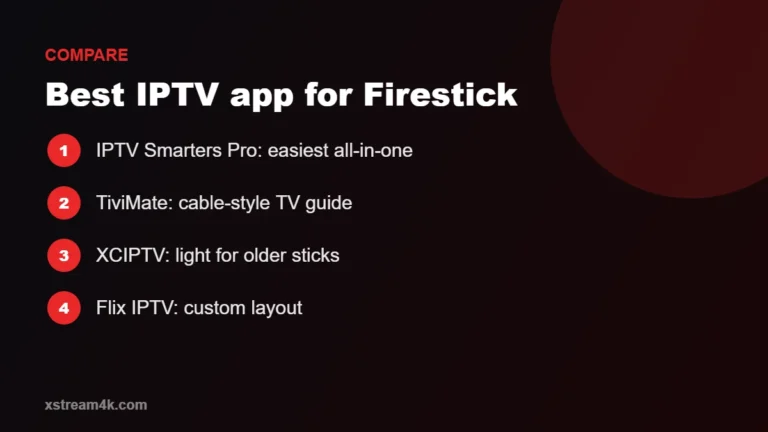
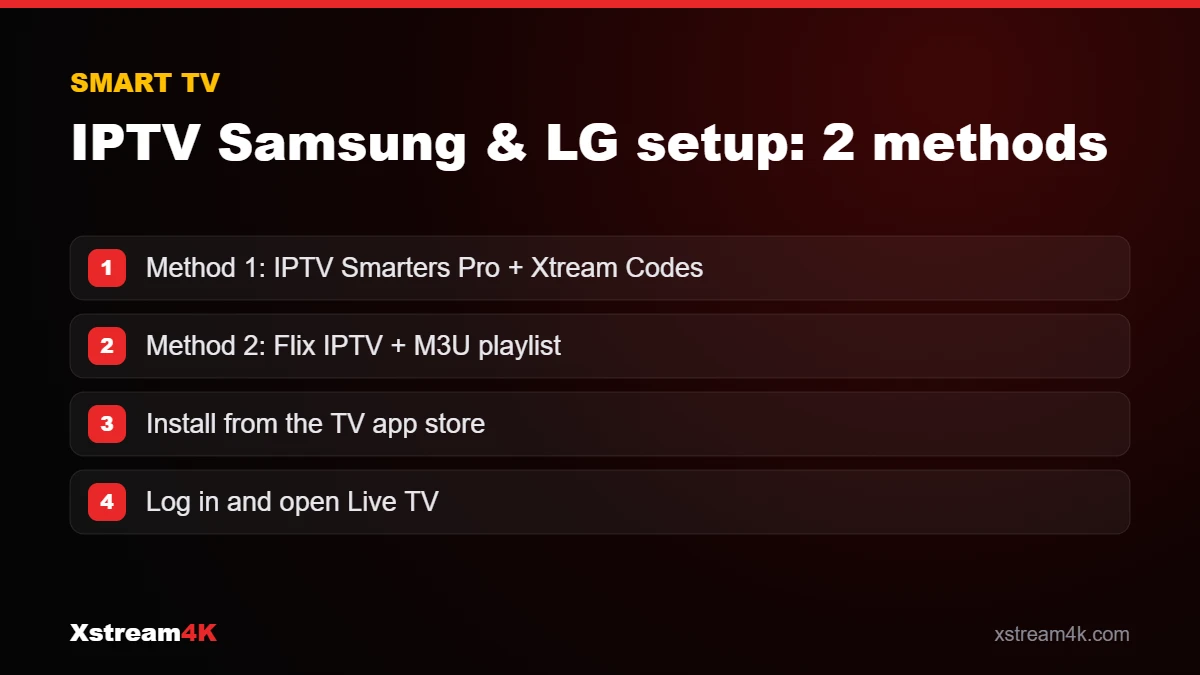
Several IPTV players are available in the Samsung and LG app stores. Two popular choices are:
- IPTV Smarters Pro: login with your username, password and server URL (Xtream Codes).
- Flix IPTV: uses an M3U playlist link that you upload to the app’s website with your TV’s MAC address.
App availability can change depending on your TV model, its year and your country. Some players are free to try and then ask for a small one-time activation fee paid to the app developer (not to Xstream4K).
Method 1: IPTV Smarters Pro (Xtream Codes login)
- Press the Home button on your remote and open the app store: Apps on Samsung, LG Content Store on LG.
- Search for IPTV Smarters Pro and install it.
- Open the app and choose Login with Xtream Codes API.
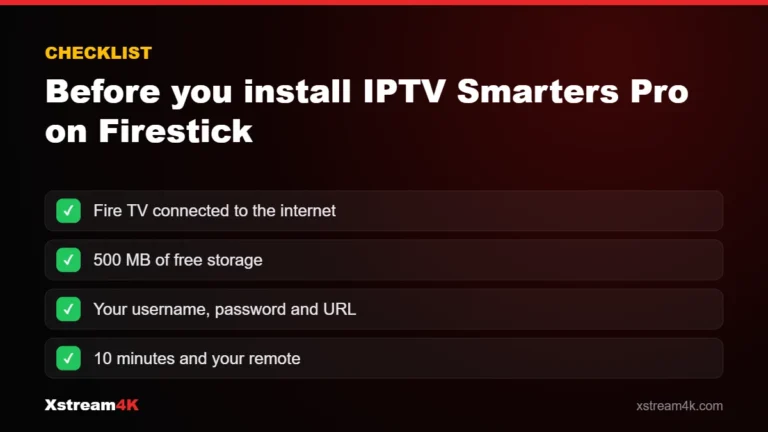
- Enter a name, then the username, password and server URL from your subscription email or WhatsApp message.
- Select Add User and wait for the channels, movies, series and TV guide to load.
Method 2: Flix IPTV (M3U playlist)
- Install Flix IPTV from the Samsung or LG app store and open it.
- Write down the MAC address displayed on the screen.
- On a phone or computer, go to the official Flix IPTV website and open the playlist upload page.
- Enter your TV’s MAC address and paste the M3U link we sent you, then save.
- Restart the Flix IPTV app on your TV: your playlist loads automatically.
Step-by-step screenshots and details for both methods are available in our Smart TV installation guide.
Is your TV compatible?
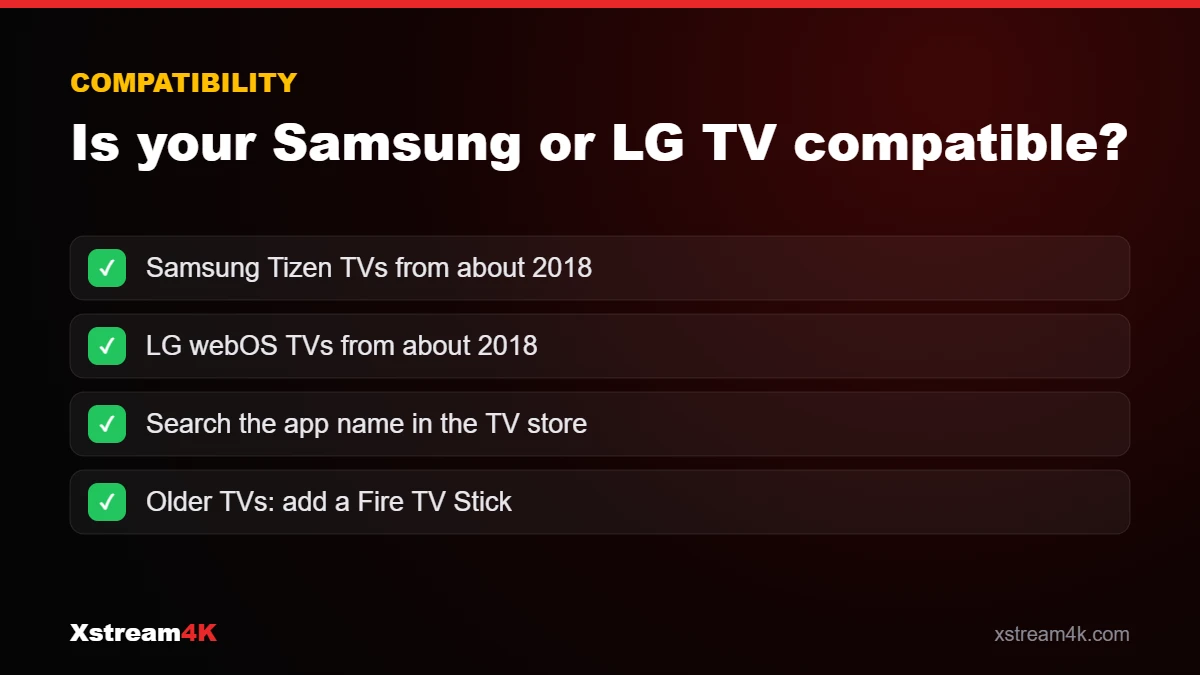
- Samsung: most Smart TVs from the last several years running Tizen can install IPTV players from the Apps store.
- LG: most webOS Smart TVs can install IPTV players from the LG Content Store.
- Older TVs or no app available? Connect an Amazon Fire TV Stick or an Android TV box to the HDMI port and follow our Firestick tutorial.
Get the best picture quality
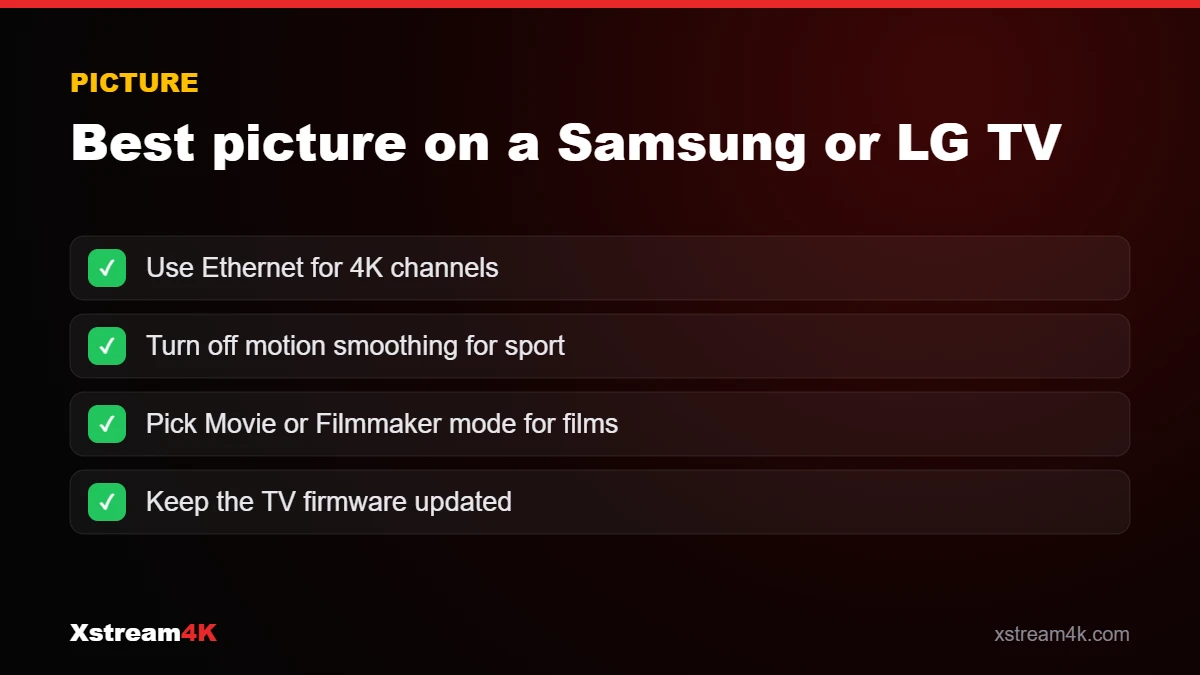
- Use an Ethernet cable between your router and the TV if possible: it is more stable than Wi-Fi.
- A download speed of 30 Mbps or more is recommended for Full HD and 4K.
- Turn off motion smoothing or similar picture effects if fast sports look unnatural.
- Keep your TV software and the IPTV app up to date.
IPTV Samsung tips: getting the most from your TV
Once your IPTV Samsung or LG app is installed, small TV settings make a visible difference, especially for sport and 4K.
Samsung (Tizen)
Samsung TVs run Tizen. Search the app store for your player, install it, and keep “Auto update” on. If an app is missing in your country, the M3U method with Flix IPTV usually still works; see our Flix IPTV setup guide.
LG (webOS)
For IPTV on LG Smart TV, the same apps are usually available in the LG Content Store. LG’s Quick Start+ can keep apps in memory, so channels open faster after switching on.
When a streaming stick is better
If your TV is older or the app runs slowly, a Fire TV Stick plugged into HDMI gives a faster experience; follow our IPTV Firestick guide. Try your IPTV Samsung setup with a free 24-hour test first.
Quick recap: for IPTV Samsung setups, install IPTV Smarters Pro or Flix IPTV from the Samsung Smart TV store; for IPTV on LG Smart TV, use the LG Content Store. Both work the same way once your login is added, and IPTV on Samsung and LG Smart TVs needs no extra box on recent models.
Frequently asked questions
Do I need a box to watch IPTV on my Smart TV?
No. If an IPTV player is available in your TV’s app store, you can watch directly on the TV. A box or stick is only useful for older TVs or if you prefer another app.
Can I test before buying?
Yes. If you are not sure, ask for a 1 day trial to test the quality first by contacting us on WhatsApp.
Ready to watch IPTV on your Smart TV?