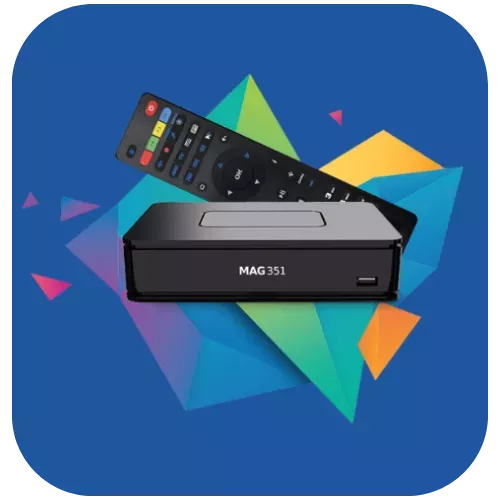
MAG set-top boxes are designed for IPTV: they boot directly into a TV-like interface and are controlled with a simple remote. Instead of a username and password, a MAG box connects with a portal URL linked to its MAC address. Here is how to set up IPTV on a MAG box.
Step 1: Find your MAC address
The MAC address is printed on a sticker under the box and is also shown in the box menu (Settings > Device Info on most models). MAG MAC addresses usually start with 00:1A:79. Send it to us via WhatsApp or email when you order, so we can activate your subscription on your box.
Step 2: Add the portal
- Turn on the box. When the main screen appears, open Settings (press SETUP/SET on the remote).
- Go to System settings > Servers > Portals.
- In Portal 1 name, type a name (for example Xstream4K).
- In Portal 1 URL, enter the portal URL we sent you, exactly as written.
- Select OK to save.
Step 3: Restart and watch
Go back to the settings menu and choose Restart portal (or reboot the box). The portal loads with your channels, movies and TV guide.
Troubleshooting a MAG box
- “Loading portal” never finishes: check the portal URL and your internet connection, then restart.
- “STB blocked” or access error: the MAC address may not be activated yet; contact our support with your MAC address.
- No picture on some channels: restart the box and test another channel; see channels not loading.
Screenshots of each step are available in the MAG section of our installation guide.
Frequently asked questions
Which MAG models are supported?
MAG 250, 254, 256, 322, 324, 349, 351, 420 and other Infomir MAG devices with a portal option work with a portal URL.
Can I move my subscription to a new MAG box?
Yes. The subscription is linked to the MAC address, so send us the MAC address of the new box and we will update it.
Can I use a MAG box and an app at the same time?
Only with a multi-device plan. A standard plan plays on 1 device at a time.
Get your MAG box activated