This IPTV iPhone guide covers the full setup. Your iPhone and iPad can play IPTV anywhere at home with a good Wi-Fi connection. Apple devices install apps only from the App Store, so the setup is simple and safe. Here is how to watch IPTV on iPhone and iPad with your Xstream4K subscription.
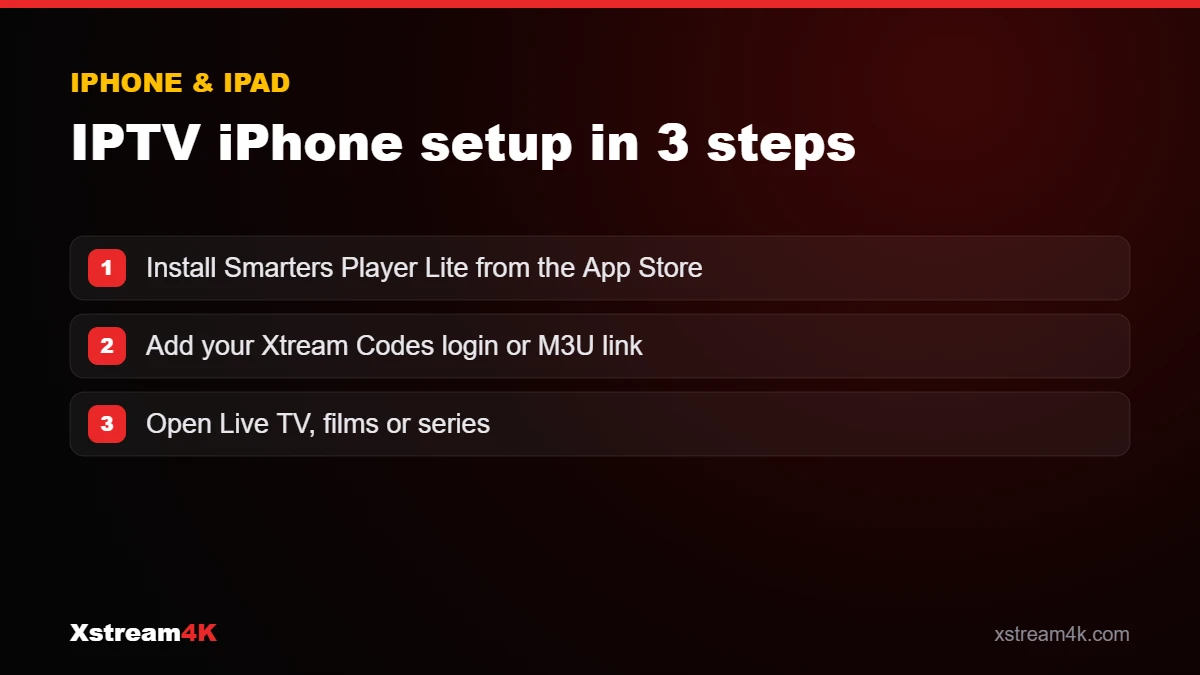

Step 1: Install Smarters Player Lite
- Open the App Store.
- Search for Smarters Player Lite and select Get.
- Open the app and accept the terms of use.
App availability can vary by country. Other App Store players that support an Xtream Codes or M3U login can also be used.
Step 2: Add your subscription
- Choose Login with Xtream Codes API.
- Enter any name, then your username, password and server URL.
- Tap Add User and wait for the content to load.
Step 3: Watch on your TV with AirPlay
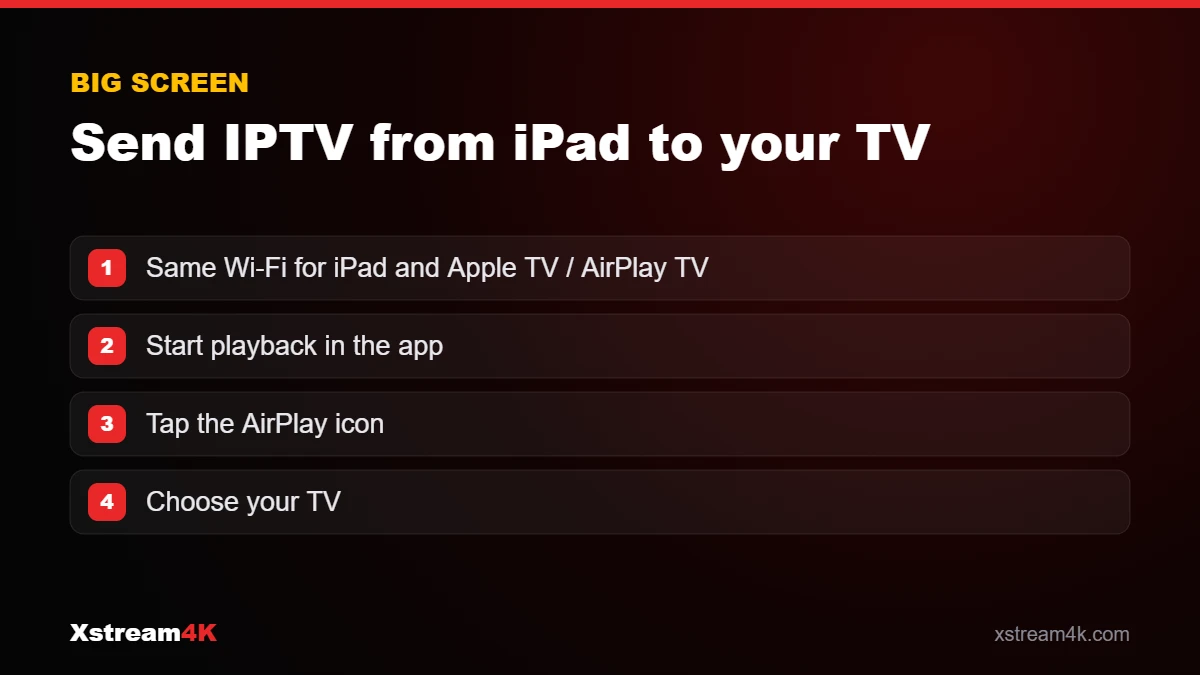
To watch on a TV that supports AirPlay (Apple TV or a compatible Smart TV), start a channel, tap the AirPlay icon in the player, or open the Control Center and choose Screen Mirroring. Your iPhone and TV must be on the same Wi-Fi network.
Tips for iPhone and iPad
- Use Wi-Fi rather than mobile data for HD and 4K channels.
- Lock the screen orientation to landscape for a full-screen picture.
- Keep the app updated from the App Store.
- Your plan works on 1 device at a time unless you choose a multi-device plan: close the app on your TV before watching on your phone.
More details are available in the iPhone & iPad section of our installation guide.
IPTV iPhone tips for the best experience
Phones and tablets are convenient second screens. With a few adjustments, IPTV on iPhone and iPad is as comfortable as on a TV.
Save mobile data
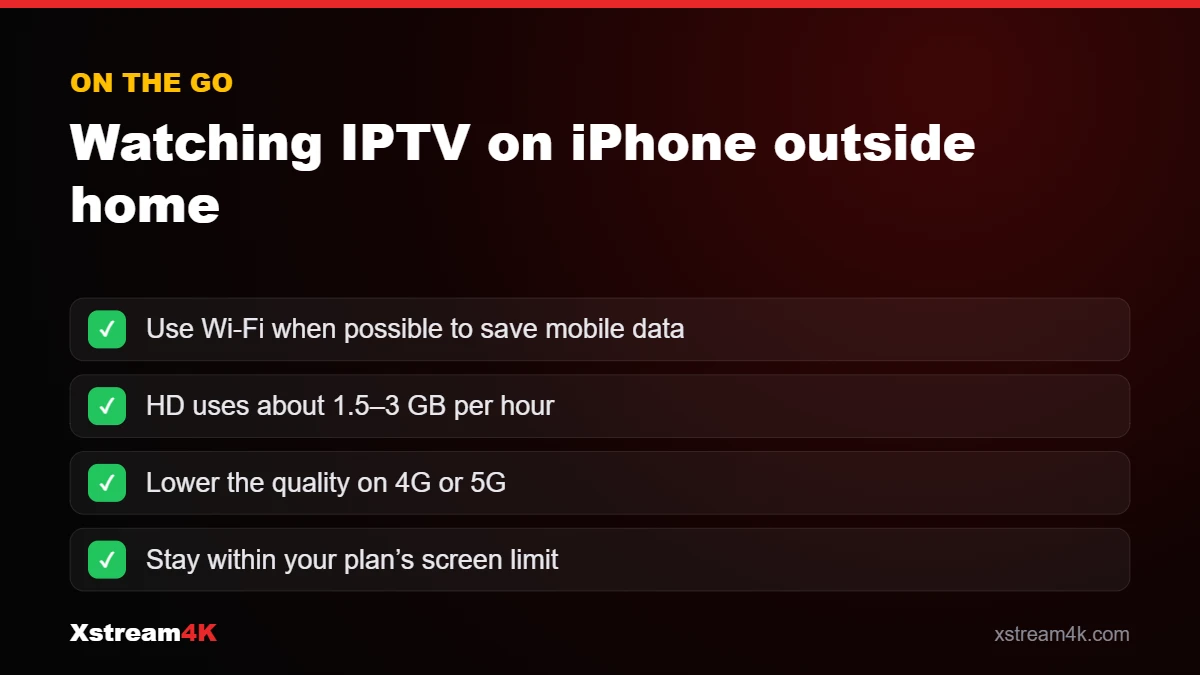
Live HD streams use a lot of data, roughly 1.5 to 3 GB per hour. On 4G or 5G, lower the quality in the app settings, or stick to Wi-Fi for long matches and films.
Keep the app and iOS updated
Updates fix playback bugs and improve compatibility. If channels stop loading after an update, log out and back in; our guide to IPTV channels not loading has more checks.
Use AirPlay for the TV
With AirPlay, IPTV on iPad or iPhone can be sent to an Apple TV or an AirPlay-compatible TV. For daily viewing on the TV, a dedicated app is more comfortable; see IPTV Apple TV setup.
How many screens can I use?
Each device that plays at the same time counts as one screen. If you watch on your phone while someone else uses the TV, choose a plan for two or more devices; our guide to single vs multi-device IPTV explains the options. Try IPTV on iPhone first with a free 24-hour test.
Using IPTV on iPad as a family screen
An iPad makes a good second TV in a kitchen or bedroom. Create favourites for the channels each person watches, and use the parental controls in the app if children use the tablet. If the iPad and the main TV play at the same time, make sure your plan includes enough devices so neither stream is interrupted.
Frequently asked questions
Do I need a jailbreak to watch IPTV on iPhone?
No. App Store players such as Smarters Player Lite install normally. Never jailbreak your device to install an IPTV app.
Can I download channels to watch offline?
No. Live channels are streamed in real time and need an internet connection.
Why does the picture stop when I lock my iPhone?
iOS pauses many video apps in the background. Keep the app open, or use AirPlay to a TV for long viewing sessions.
Watch IPTV on your iPhone and iPad