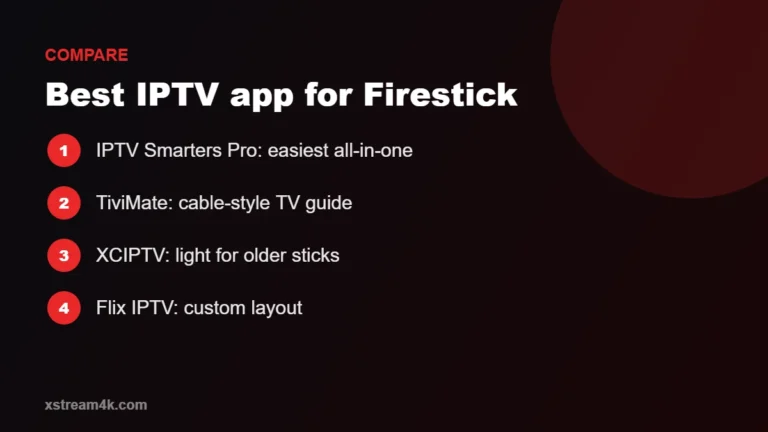
Flix IPTV is a popular player for Smart TVs because it is available on Samsung (Tizen), LG (webOS), Android TV and Amazon Fire TV. It does not ask you to type a long link on the TV: you upload your playlist from a phone or computer instead. Here is the complete Flix IPTV setup.
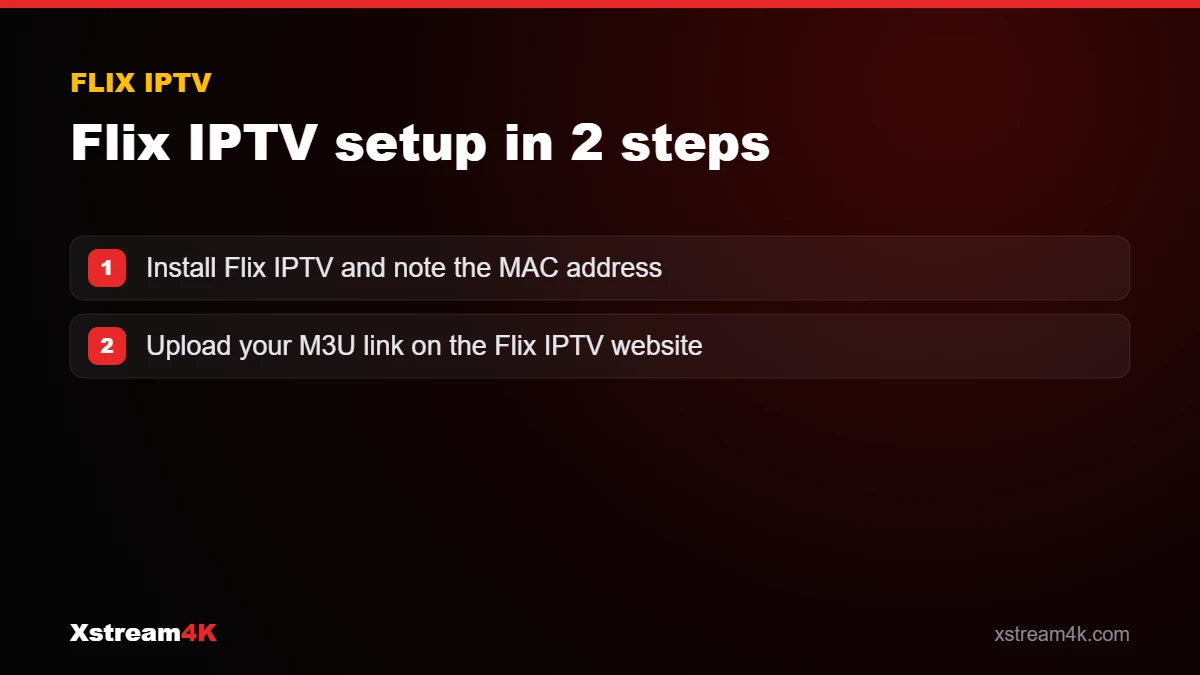

Step 1: Install the app
- Open your TV app store (Samsung Apps, LG Content Store, Google Play or the Amazon Appstore).
- Search for Flix IPTV and install it.
- Open the app: a screen shows your device’s MAC address.
Step 2: Upload your M3U playlist
- On a phone or computer, open the official Flix IPTV website and go to the playlist upload page.
- Enter the MAC address displayed on your TV.
- Paste the M3U link from your Xstream4K details and give the playlist a name.
- Save, then restart Flix IPTV on the TV: the playlist loads automatically.
About the app activation
Flix IPTV is developed by a third party, not by Xstream4K. It usually offers a free trial period, after which the developer asks for a small one-time activation fee per device, paid on their website. Your Xstream4K subscription and the app activation are separate.
Tips for a better experience
- Refresh the playlist from the app settings after changes.
- EPG: the TV guide loads from the playlist; if it is empty, see our EPG guide.
- Language and theme can be changed in the settings.
- Use a wired connection for 4K channels when possible.
Flix IPTV setup tips for a smoother experience
Once your Flix IPTV setup is complete, a few small adjustments make the app faster and easier to use every day.
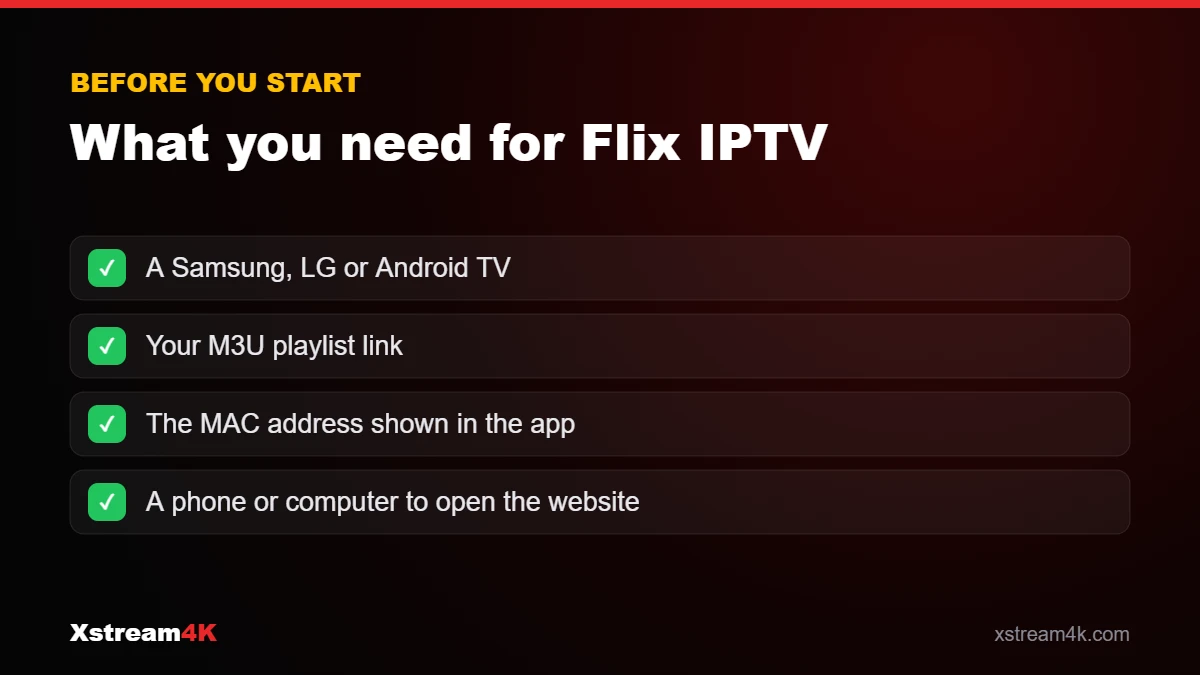
Organise your channel list
Flix IPTV lets you hide categories and create favourites. Hiding countries or groups you never watch makes the M3U playlist load faster and keeps scrolling short on a TV remote.
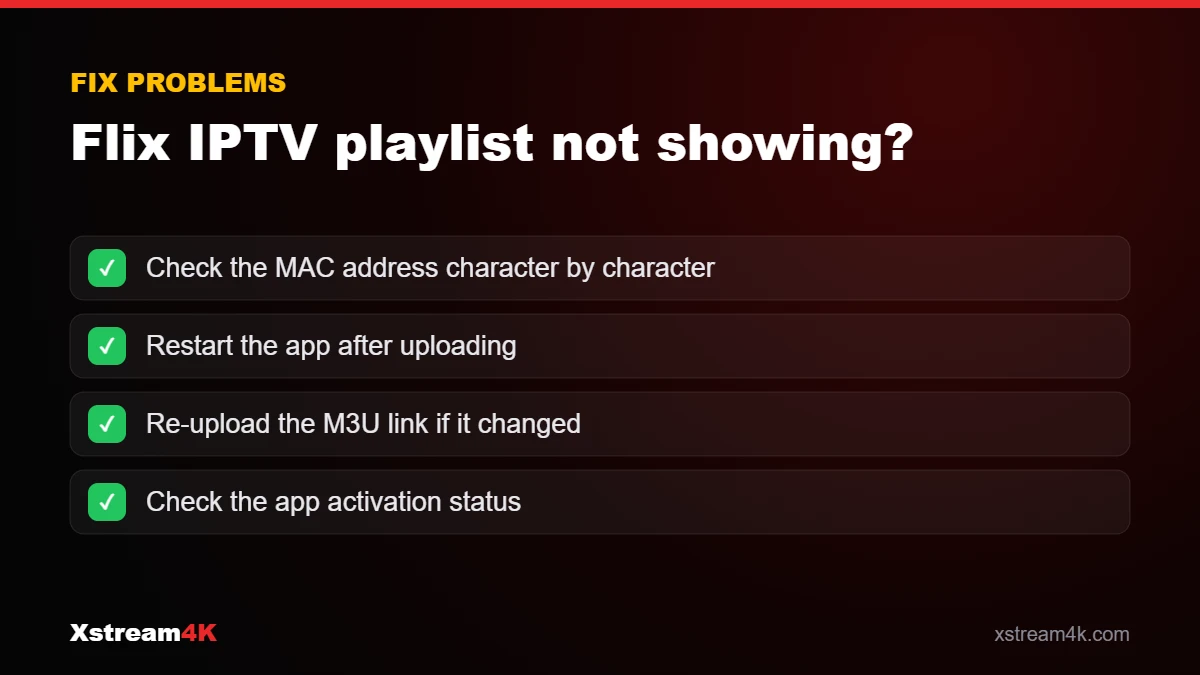
Keep your playlist link up to date
If we send you a new M3U link, for example after a renewal or a change of plan, upload it again on the Flix IPTV playlist page with the same MAC address. The app picks up the new list after a restart.
Check the app activation
Flix IPTV has a free trial period and then requires a one-time activation from the app’s developer. This is separate from your Xstream4K subscription. If the app asks for activation, follow the instructions on its website.
Flix IPTV or another app?
Flix IPTV is a good choice for Samsung and LG TVs because it accepts an M3U playlist without typing long details on the TV. If you prefer logging in with a username and password, an Xtream Codes app may suit you better; compare the options in our guide to IPTV on Samsung and LG Smart TVs. You can try your Flix IPTV setup during a free 24-hour IPTV test before choosing a plan. Background on the playlist format is on the M3U page.
Frequently asked questions
Does Flix IPTV use the Xtream Codes login?
Flix IPTV works mainly with an M3U playlist link. If you prefer a username and password, use IPTV Smarters Pro instead.
I changed my TV. Do I need to upload the playlist again?
Yes. The playlist is linked to the MAC address of each device, so upload it again for the new TV.
Is the activation fee part of my subscription?
No. It is paid to the app developer for the player. Your Xstream4K plan covers the IPTV service only.
Read more in the Flix IPTV section of our installation guide, or see IPTV on Samsung and LG Smart TVs.
Get your M3U link for Flix IPTV