Your IPTV internet speed decides whether channels play smoothly or keep pausing. Your internet speed for IPTV decides which quality you can watch smoothly. Here is what to check, with practical figures for one screen and for several screens at the same time.
Our recommendation
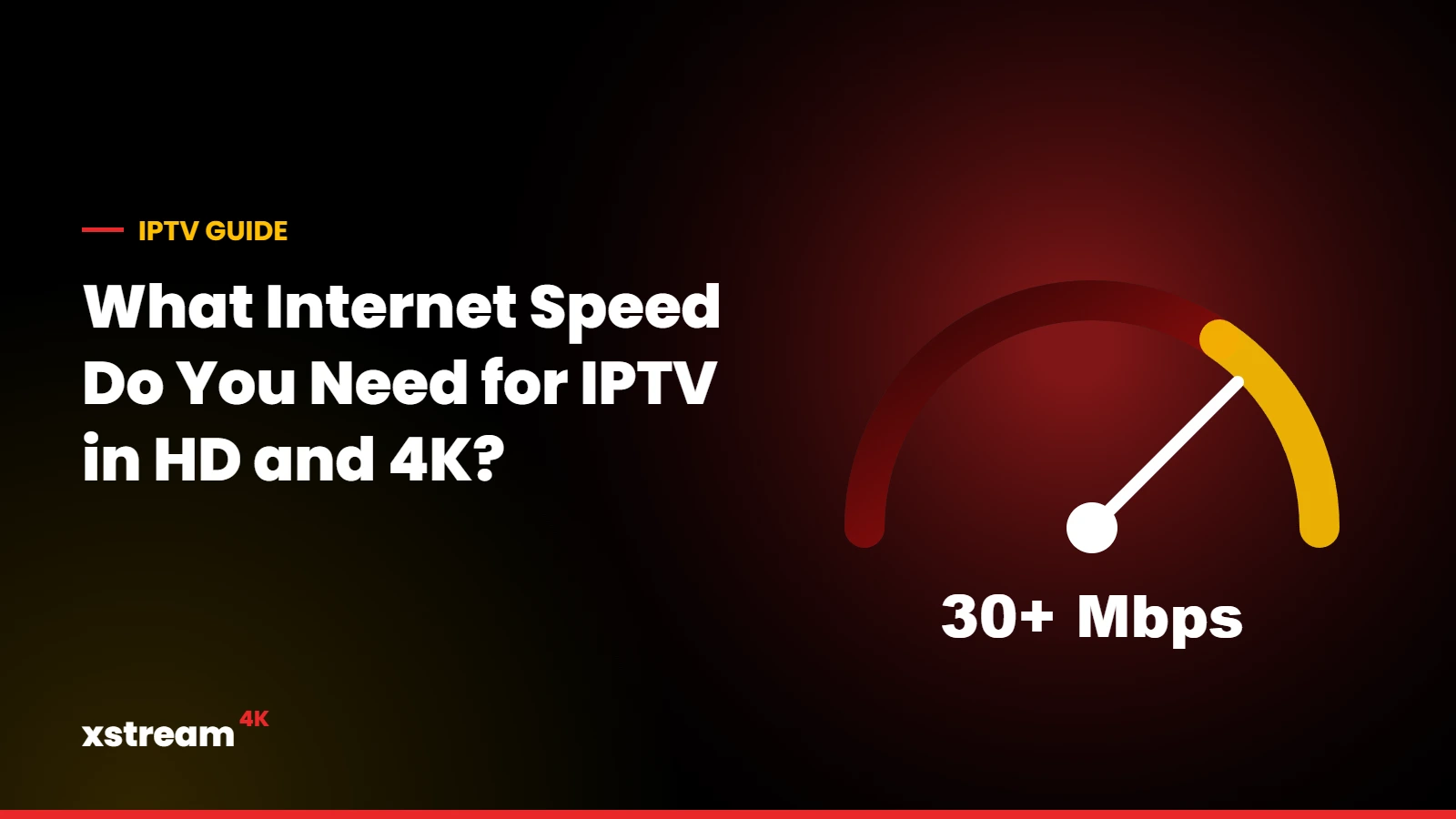
For the best experience with Xstream4K, we recommend a download speed of at least 30 Mbps. With this speed everything works smoothly in the highest quality. Lower speeds still work in SD and HD.
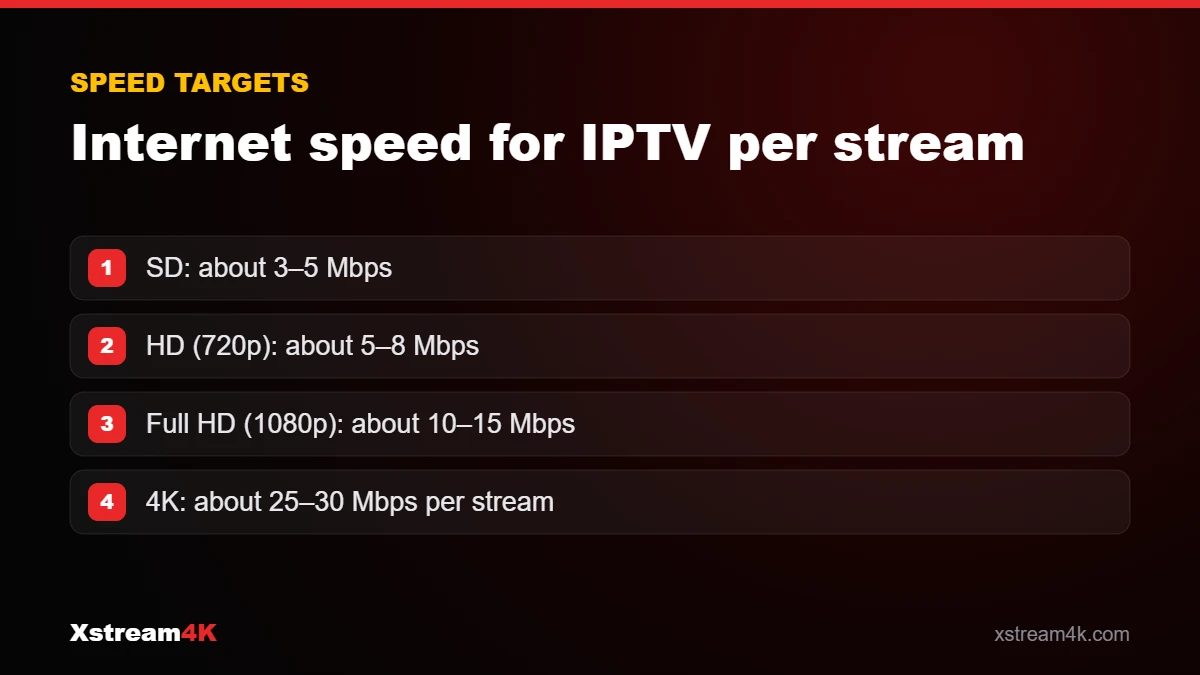
Approximate bandwidth per stream
Streaming services commonly use figures in these ranges. The exact value depends on the channel and the compression:
| Quality | Approximate need per screen |
|---|---|
| SD | about 3 to 5 Mbps |
| HD (720p) | about 5 to 8 Mbps |
| Full HD (1080p) | about 8 to 12 Mbps |
| 4K | about 20 to 25 Mbps |
These are guidelines, not guarantees. Live sports at high frame rates and 4K channels need the most bandwidth.
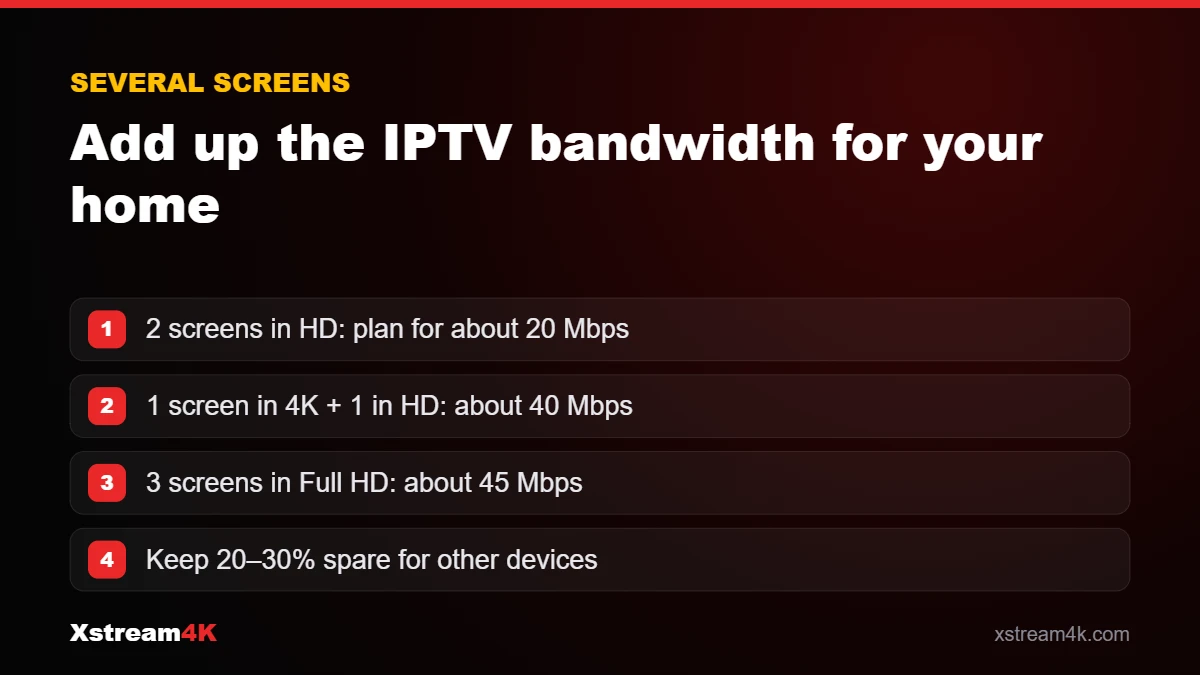
Several screens at the same time
Add the needs of each screen. For example, one 4K TV and two Full HD screens can need around 40 to 50 Mbps in total. If you plan a multi-device plan, check that your connection can handle all the streams together.
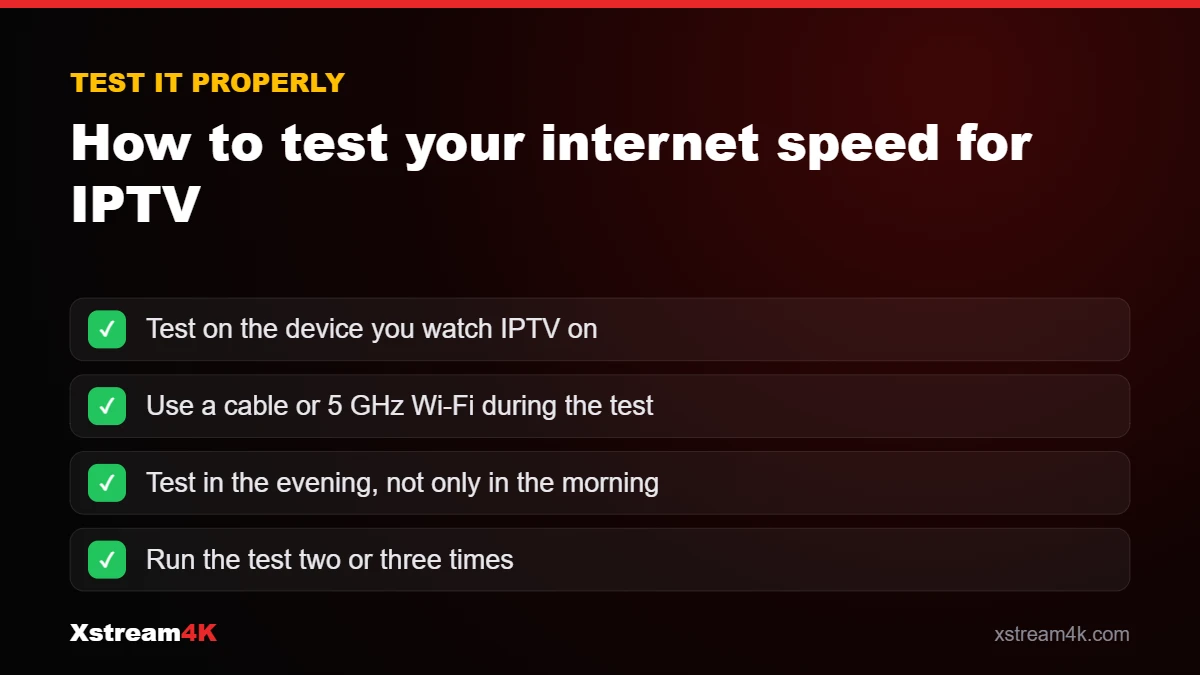
How to test your speed properly
- Run the test on the device you watch on (or a phone next to it on the same Wi-Fi), not on a computer next to the router.
- Test in the evening, when networks are busiest.
- Look at the download speed and the stability: large variations between tests often mean a weak Wi-Fi signal.
How to improve your connection
- Use an Ethernet cable for the main TV device.
- Use the 5 GHz Wi-Fi band and place the router in an open, central position.
- Consider a mesh Wi-Fi system for large homes.
- Pause large downloads and updates while watching.
Why internet speed for IPTV is not the only factor
A fast plan on paper does not always mean smooth streaming. When people check internet speed for IPTV, they often test on a phone next to the router in the morning, then watch on a TV in another room in the evening. Three other factors matter just as much.
Stability
Live TV needs a steady flow of data. A line that jumps between 80 Mbps and 5 Mbps will buffer more than a stable 30 Mbps line. Running a test on Speedtest several times in the evening shows how stable your line really is.
Wi-Fi quality
Walls and distance can cut Wi-Fi speed in half. For 4K, an Ethernet cable or a 5 GHz connection close to the router makes a bigger difference than upgrading your plan.
Other people at home
Video calls, game downloads and cloud backups all share the same IPTV bandwidth. If streams drop at the same time every evening, another device is probably using the line.
What to do if your speed is too low
- Lower the quality in your player app (Full HD instead of 4K).
- Move the router or add a wired access point near the TV.
- Pause large downloads while you watch live events.
- Follow our guide to fix IPTV buffering for nine more practical checks.
Not sure your connection is good enough? A free 24-hour IPTV test is the most reliable way to check internet speed for IPTV in real conditions, on your own screen.
IPTV internet speed: a quick checklist
- One HD screen: 10 Mbps is comfortable.
- One 4K screen: 25–30 Mbps, ideally over a cable.
- Each extra screen: add the Mbps for its quality.
- Keep a margin for phones, laptops and game consoles.
If your IPTV internet speed meets these targets but streams still stop, the problem is usually Wi-Fi coverage or another device using the line, not the plan itself.
Frequently asked questions
Is upload speed important?
Not much. IPTV mainly uses download speed.
Does IPTV work on mobile data?
It can, but HD and 4K use a lot of data. Wi-Fi or a wired connection is recommended at home.
Not sure your connection is good enough?
Ask for a free trial to test the quality on your own network before buying.
Test the quality on your connection