This IPTV Enigma2 guide walks you through the full installation. Enigma 2 is the software used by many satellite receivers such as Dreambox, Vu+, Zgemma and Octagon. With an installation script, your IPTV channels appear as bouquets next to your other channels. This guide explains how to install IPTV on Enigma 2.

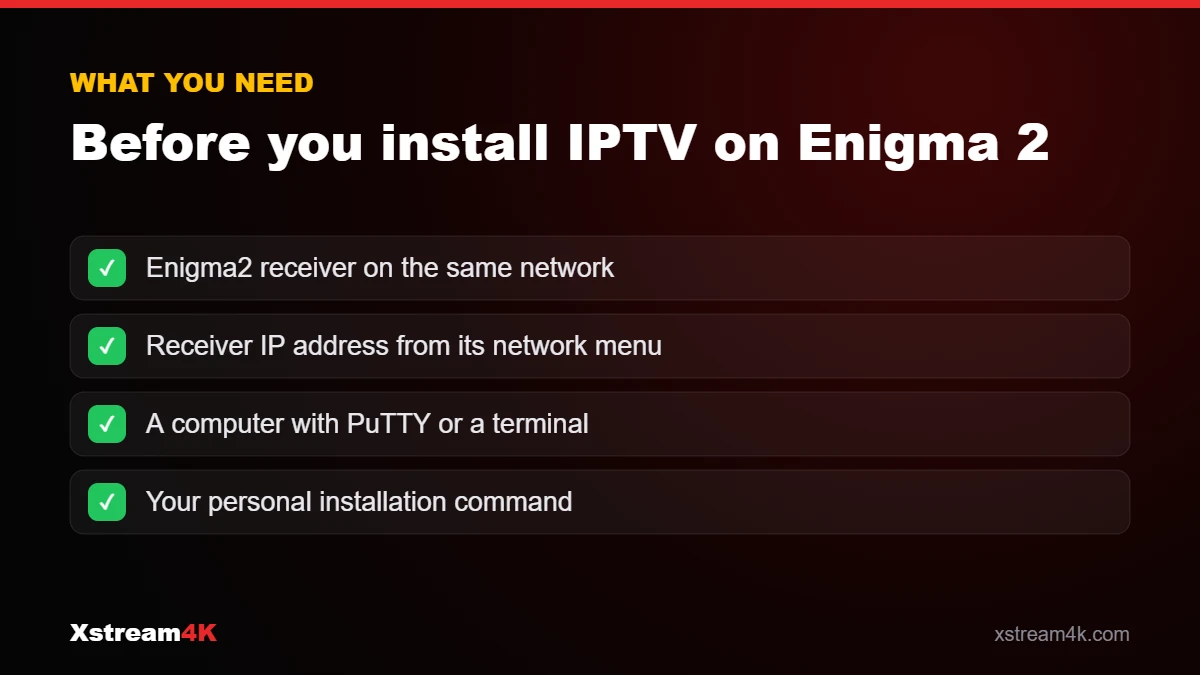
What you need
- An Enigma 2 receiver connected to your home network.
- The IP address of the receiver: Menu > Setup > System > Network > Device setup (menu names vary by image).
- A computer on the same network with a Telnet/SSH client, for example PuTTY on Windows or the Terminal on Mac.
- The installation command (iptv.sh) we send you with your subscription.
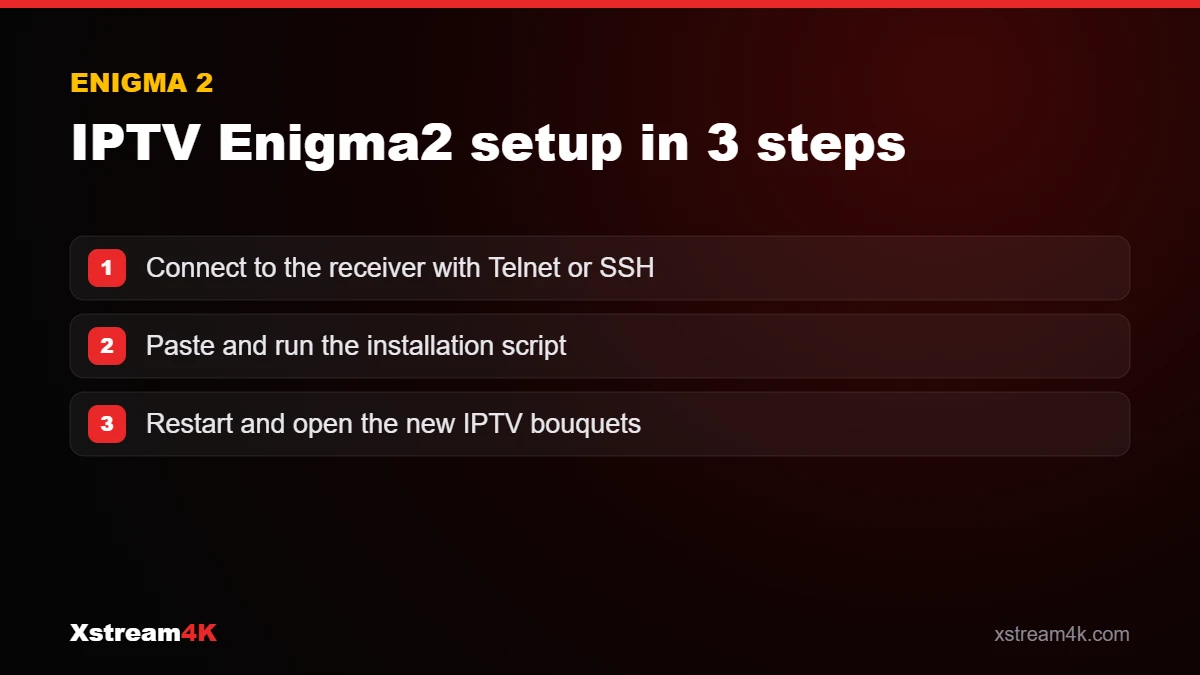
Step 1: Connect to the receiver
- Open PuTTY, enter the receiver’s IP address, choose Telnet (port 23) or SSH (port 22) and click Open.
- Log in with the receiver’s user, usually root. Many images have no password by default; otherwise use the password you set on the receiver.
Step 2: Run the installation command
- Copy the full command we sent you (it starts with wget) and paste it into the terminal (right-click in PuTTY pastes).
- Press Enter and wait until the script finishes.
Step 3: Restart and open the bouquets
- Restart the receiver’s interface (Standby / Restart > Restart GUI) or reboot it.
- Open the channel list: the IPTV bouquets are added to your favourites.
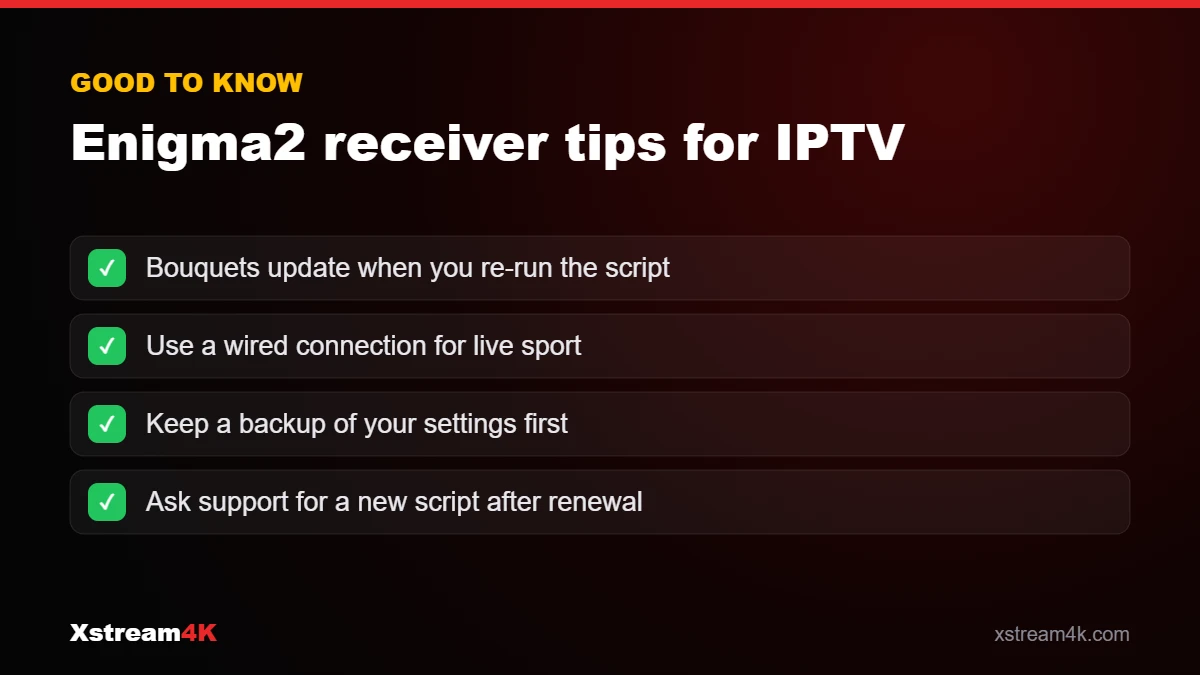
Good to know
- Type commands exactly; one missing character stops the script.
- If the bouquets do not appear, run the command again and restart the GUI.
- A wired Ethernet connection is recommended for receivers.
See also the Enigma 2 section of our installation guide.
IPTV Enigma2 tips and common questions
Enigma 2 receivers such as Dreambox, Vu+ and Zgemma are popular with satellite fans, and adding IPTV gives you live channels alongside your existing bouquets. These tips help your IPTV Enigma2 setup stay reliable.
Back up before you start
Most Enigma2 receiver images include a backup tool. Saving your settings and channel lists first means you can return to the previous state if anything goes wrong.
Find the receiver’s IP address
Open the network settings on the receiver and note its IP address. You connect to that address from your computer with Telnet or SSH (for example with PuTTY on Windows or the terminal on Mac) to paste the installation command.
Updating your bouquets
If we send you a new installation command, for example after a renewal or a plan change, run it again the same way. The IPTV bouquets are replaced with the updated list after a restart.
Is IPTV on Enigma 2 right for you?
IPTV on Enigma 2 suits users who already own a receiver and like its remote and channel lists. If you are starting from scratch, a dedicated box or stick is easier to set up; compare options in our guide to the best devices for IPTV, or see the MAG box setup guide. Technical background on the receiver software is on the Enigma2 page. You can try your IPTV Enigma2 setup with a free 24-hour test.
Frequently asked questions
Is Telnet or SSH better?
Both work. SSH is encrypted and is enabled by default on many recent Enigma 2 images; Telnet is available on older images.
Will the script delete my satellite channels?
No. The script adds IPTV bouquets; it does not remove your existing satellite or cable bouquets.
Can I use an IPTV app on the receiver instead?
Some Enigma 2 images offer IPTV plugins that accept an M3U link or Xtream login. The installation script is the simplest method for most receivers.
Need the installation command for your receiver?