Formuler boxes (Z8, Z10, Z11 and other Z-series models) are Android-based set-top boxes that come with MYTVOnline, a TV-style IPTV app. It supports a portal connection linked to the box MAC address and, on recent versions, an Xtream Codes login. This guide covers the Formuler MYTVOnline setup step by step.
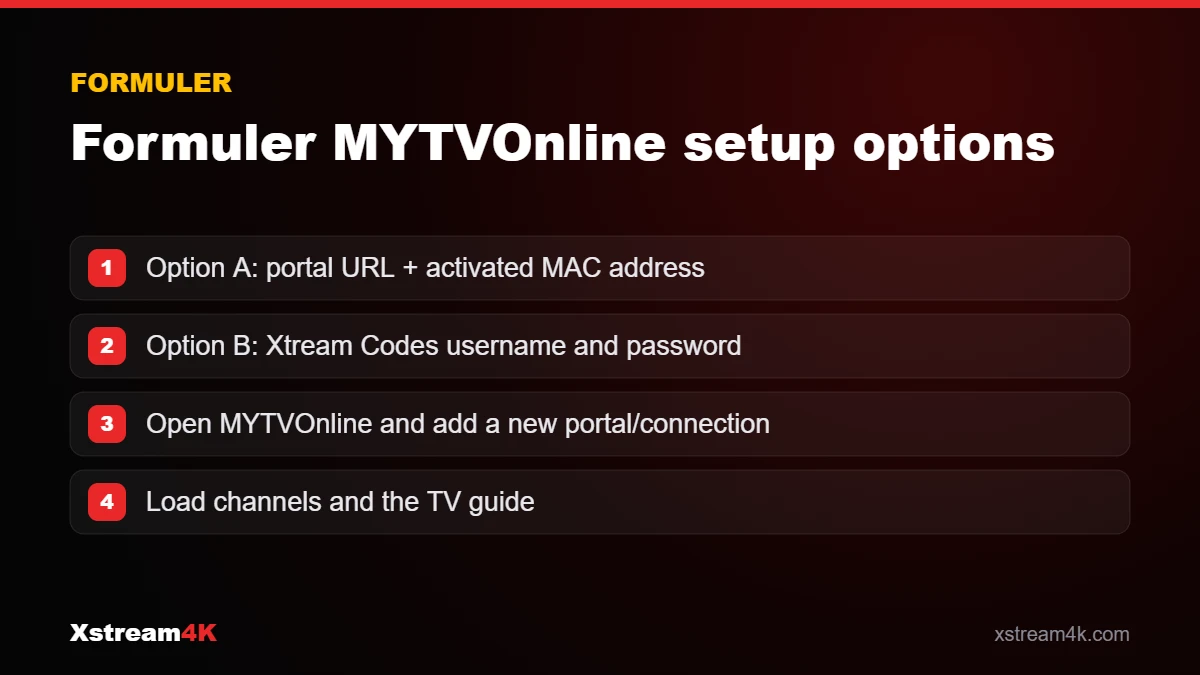
Option A: Portal connection (MAC address)
- Open MYTVOnline from the Formuler home screen.
- Write down the MAC address shown on the welcome or portal screen. Use the MAC address shown in the app, not another address from the network settings.
- Send this MAC address to us via WhatsApp or email so we can activate it.
- Select Add Portal, enter a portal nickname (for example Xstream4K) and the portal URL we send you.
- Select Connect and wait for channels and the TV guide to load.
Option B: Xtream Codes login
If your MYTVOnline version offers it, choose Add Portal > Xtream Codes (or Login with Xtream Codes), then enter the server URL, username and password from your subscription details. This option does not require MAC activation.
Useful MYTVOnline settings
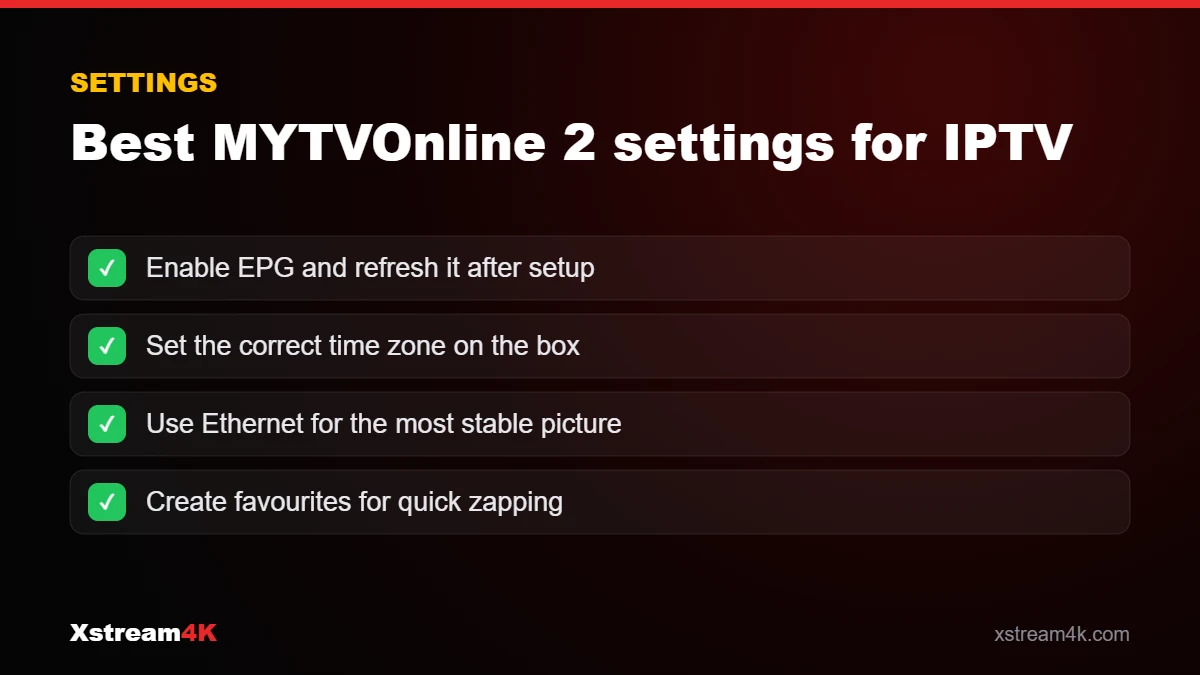
- TV guide: in the channel list, press the EPG button on the remote to display the guide. Use Portal Options > Update EPG if it is empty.
- Favourites: press OK on a channel and choose Add to favourite.
- Channel groups: hide groups you do not use to make the list shorter.
- Updates: keep the Formuler system and MYTVOnline updated from the box settings.
Formuler MYTVOnline: which login option should you use?
Formuler MYTVOnline accepts two kinds of connection, and both give you live channels, films, series and the TV guide. The best one depends on how you received your details.
Portal and MAC address
This is the classic way to use a Formuler box. You give us the box’s MAC address, we activate it, and you add our portal URL in MYTVOnline 2. Nothing else needs to be typed, which makes it easy with a TV remote.
Xtream Codes login
If you prefer, Formuler MYTVOnline can also log in with an Xtream Codes username, password and server URL. This is useful if you move your subscription between devices or if you already use the same login on a phone. Our guide to M3U vs Xtream Codes vs MAC portal compares the formats.
Getting the most from your Formuler box
- Use a cable. Formuler boxes have an Ethernet port; it gives the most stable picture for live sport.
- Refresh the guide. After setup, update the EPG so programmes appear for every channel; see our IPTV EPG guide if it stays empty.
- Organise favourites. Grouping the channels you watch most makes zapping much faster.
Formuler MYTVOnline is one of the most comfortable ways to watch IPTV on a TV, because the interface is designed for live channels. You can test it with a free 24-hour IPTV test before choosing a plan.
Frequently asked questions
Which login is better on Formuler?
Both give access to the same content. The portal gives the classic Formuler TV interface; the Xtream Codes login is faster to set up because no MAC activation is needed.
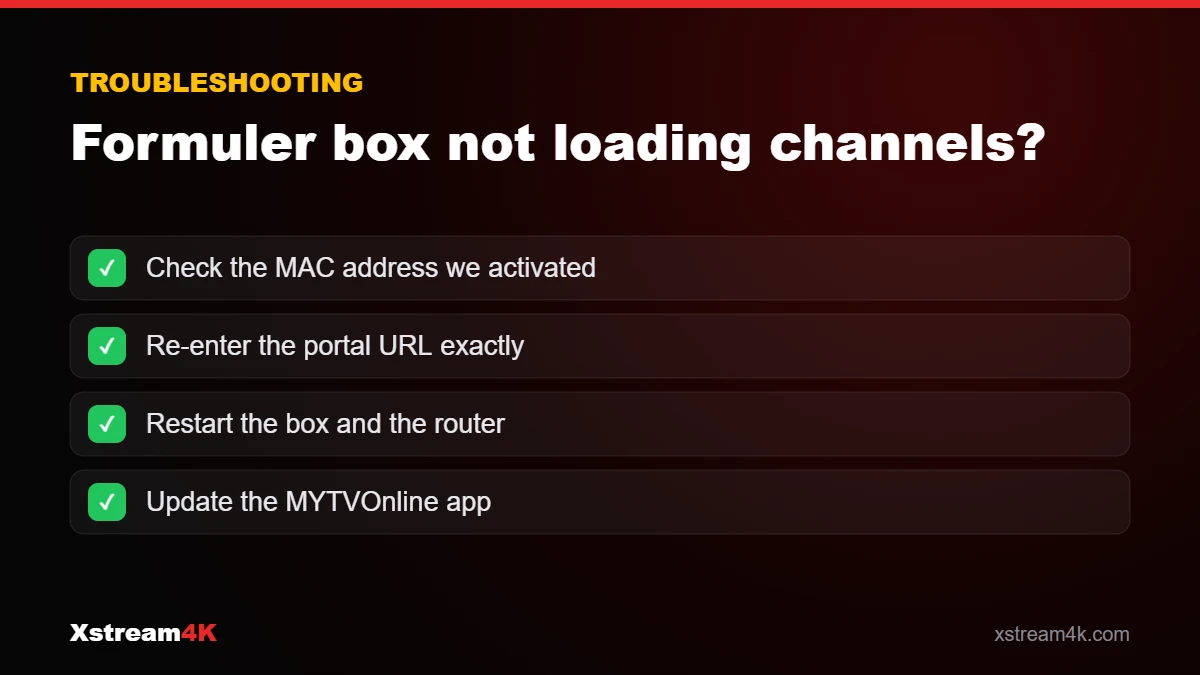
My box says “portal connection failed”
Check the portal URL, make sure the MAC address was activated, and restart the box. If it continues, contact our support with a photo of the error.
Can I use other apps on Formuler?
Yes. Formuler boxes run Android, so apps such as IPTV Smarters Pro can also be installed.
See also the Formuler section of our installation guide.
Watch on your Formuler box